Sharing Documents and Images from the Profile Section
(Web and Mobile)
The Share feature in Blume allows you to securely share your medical documents and images directly from your Profile section. You can share files using email, a secure link, or through your associated healthcare providers — ensuring quick and safe access to your studies when needed.
Accessing the Profile Section
- Log in to your Blume account.
- On the Home Page, click your username located at the top-right corner of the screen.
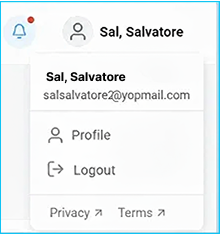
- From the dropdown menu, select Profile.
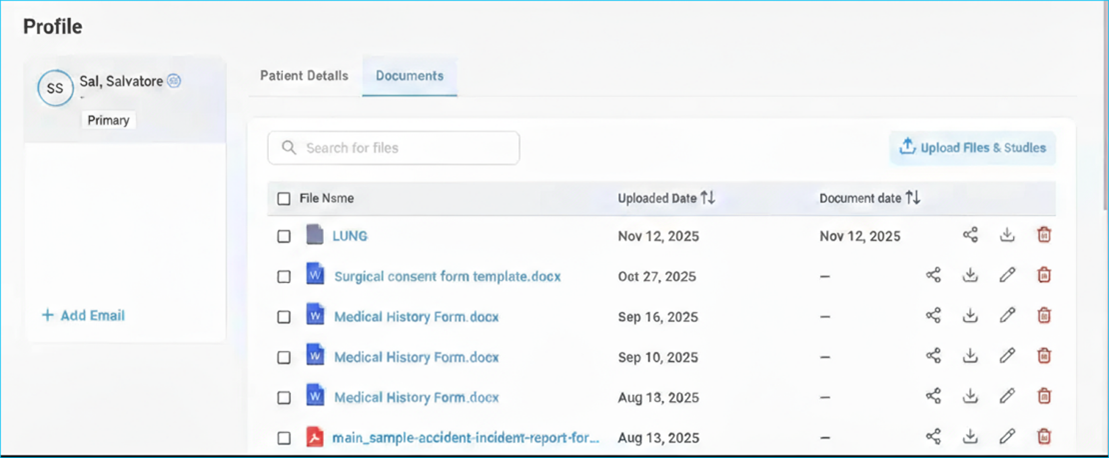
- You will be directed to your Profile Page, which contains two tabs:
- Patient Details
- Documents
Click the Documents tab to view all available documents and images (such as DICOM studies or uploaded files).
Sharing Documents or Images
If documents or DICOM images are available, they can be shared directly from this section.
- Locate the document or image you wish to share.
- Click the Share icon on the right side of the file.
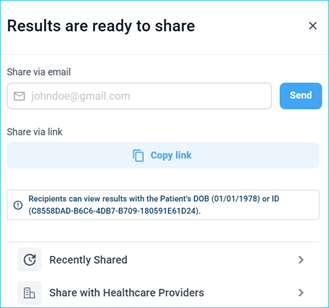
- A Share window will appear, displaying multiple sharing options for documents and images respectively.
Available Sharing Options for the Images/DICOM files.
1. Share via Email
- Enter the email address of the recipient in the provided field.
- Click Send to share the document or image.
- Once sent, a confirmation message — “Shared successfully” — will appear in green.
- The recipient’s email address will also be listed under Recently Shared, allowing you to quickly re-share with the same contact.
2. Share via Link
- Click Copy Link to generate a secure sharing link.
- You can paste this link in an email, message, or browser.
- To access the shared file, the recipient must enter the Patient ID or Date of Birth (as specified in the link).
- This method is useful for sharing files outside the Blume platform while maintaining data security.
3. Share with Healthcare Providers
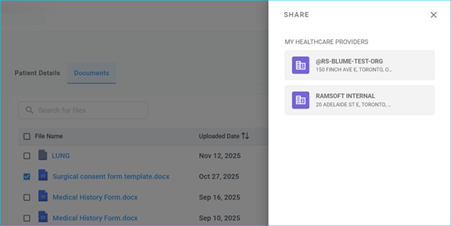
- Select Share with Healthcare Providers.
- A list of your associated providers will appear.
- Choose the provider(s) you wish to share with and click Share.
- Once shared, the Share button changes to Shared, confirming successful access sharing.
Available Sharing Options for Documents and Files
- Once you select a document from the Documents section, you will see a Share button on the right side of the file.
- Clicking this button opens the sharing options available for that specific document.
Sharing with Healthcare Providers
You can share the selected document directly with the healthcare providers you are associated with. Choose a provider from the displayed list and proceed with sharing.
Note: Documents and DICOM images cannot be shared together. Each file type must be shared separately.